Showing posts with label Source Code. Show all posts

Sunday, April 25, 2010

Basic Backup and Restore for MS SQL Server 2000

Here is a simple tutorial for backup and restore in SQL Server 2000. This tutorial covers the basic procedures in creating backup and restoring databases. In this tutorial, we will be using Northwind Database as our example since it available on the sample databases of SQL Server

Backup


Before we backup our database, we have to create a logical backup device for our database.
On the query analyzer, make the database in use by selecting it on the drop down menu or by executing the code:


Use Northwind


Now we will create our logical backup device. Make sure the path exists when you execute this. If you execute this without errors it means that you are doing right.


EXEC sp_addumpdevice 'disk', 'NWINDBackup',
'c:\NorthwindSystems\Backup\NWind_backup.bak'
--NWINDBackup will be the name of our logical backup drive

After successful execution, you cannot run this code again since it already exists1
Then we will now backup our database with the following code:

As I said(or typed :o)) earlier, you should make sure that the path you created exists2.
BACKUP DATABASE Northwind TO NWINDBackup


Restore


Now we will restore are database based on the backup file we have created.
RESTORE DATABASE Northwind
FROM NWINDBackup
The syntax follows as:
RESTORE DATABASE [your db name]
FROM [logical drive]


Notes:
1"Honestly, I haven't figured out yet how to alter that logical backup thing but please stay tuned for updates. You can also post some suggestions for this"-jereme

2. Tip: Or at least tell your front end application to create folders if it does not exist.

Friday, April 23, 2010

Opening Another Program in VB.NET

Hey I got this code from the website www.dreamincode.net/forums


Try
Dim p As New System.Diagnostics.Process
'the location of your program
p.StartInfo.FileName = "K:\Uni\Year 2\Visual Basic\Report\MSDN\Absolute Beginner's Series VB Lesson 1\01 VB Code\Lesson01\HelloWorld.exe" 
p.Start()
Catch ex As Exception
MsgBox("Error - " + ex.Message)
End Try

This can be useful in opening other applications (especially Microsoft VB.NET applications). The problems is that there are chances of error especially when the program is missing, or the program has been moved.


As a solution to that problem, I suggest that you would make the separate application relative to your executable file so that
moving the whole project to another location whould not affect the path you specified.
Your file path should look like this.
p.StartInfo.FileName = "Your Program.exe"  'your relative path, no need to include the drive location for portability

Just make sure that the program is located beside the program you are debugging.
You can do this by adding another project as a reference to your main project so that everytime you compile, the executables automatically
proceed to the bin where they would reside as they are executed.
To add a refecence, you can follow these steps:

If the other program (VB Project) is not yet part of the Solution:
1. go to File > Add Existing project
2. Then select the project file of the program you want to link it with.
You will notice in the solution explorer that another project is added.

Now, you can make that program part of the main program by adding it as a reference.
On your solution explorer, right click your main project, Choose Add reference.

As the add reference dialog opens, choose projects then select the project file of the other program.

Add Reference
Pro VB 2008 and the .NET 3.5 Platform (Windows.Net)

Saturday, April 3, 2010

STEPS IN INTEGRATING HELP FILE IN YOUR VB.NET APPLICATION

1. Place this code inside your sub-menu (when clicked under main menu or button if you choose it instead). Make sure you follow the syntax below:

Help.ShowHelp(Me, [url]);
  • Since you use VB as programming language, it should be 'Me' not 'this' because ‘this’ is for C#. By the way, what does it mean is ‘Me’ is your main form which will become the parent of the newly opened help file (in your case, your pdf file).
  • Next parameter is ‘url’. In this type of parameter, it requires you to input the whole directory together with your pdf file.. For example, your help file is sample.pdf located at 'c:\program files\system'. Just add sample.pdf at the end of 'c:\program files\system' which becomes 'c:\program files\system\sample.pdf'.

So the final output of your ShowHelp() method is:

Help.ShowHelp(Me, "c:\program files\system\sample.pdf");


But there is one problem on this method if you install it in your client's computer; there is a possibility that his/her computer’s directories are different from yours. So if that's the case, follow this:

1. Place your sample.pdf file inside your project's bin-->debug folder (and bin-->release folder if there is) found in your project folder.

2. Then change your code into this

Help.ShowHelp(Me, Path.GetFullPath("sample.pdf"))

For example this is your whole code


--> You need to import System.IO at the top of your code, like this
Imports System.IO


NOTICE:
  • This tutorial will work only in Microsoft Visual Studio esp. 2008 (not sure in 2003 and 2005 because I used Path class which I don’t know if existing in .NET 1.1 and .NET 2.0). 2008 uses .NET 3.5.
  • I notice that chm, doc and pdf files will open once after clicking the button or submenu under main menu while txt will open as many times you click it.

Hope that helps! =) Always here to post useful tutorials for you guys!

Friday, April 2, 2010

Programming Solutions by Language

"Rosetta Code is a programming chrestomathy site. The idea is to present solutions to the same task in as many different languages as possible, to demonstrate how languages are similar and different, and to aid a person with a grounding in one approach to a problem in learning another. Rosetta Code currently has 387 tasks, and covers 225 languages, though we do not (and cannot) have solutions to every task in every language.
A variety of tasks are listed, and visitors to this site are invited to solve the tasks in the language of their choice. The tasks cover everything from the mundane Empty Program to the classic Towers of Hanoi, the practical User Input, the mathematically-inclined Lucas-Lehmer test, and the involved yet entertaining RCRPG."


//SnailviN -- Based on one of its labels, this site is just for reference. Please do not rely on it too much because you will not experience the problems and will not learn it by yourself. =3 Hope this helps.

Monday, October 5, 2009

JAVA to Microsoft Access Connection

(Using the JDBC-ODBC bridge)
A video tutorial is also available Click here to watch
ODBC can be used to connect on any databases though processing is slow... but it would still be very helpful, and that's what were gonna use to connect a JAVA Program to an MS Access Database.
We'll be using Northwind Database, a sample database made by Microsoft Corporation for learning purposes. A database of this is also available in SQL server 2000. Click on the link to download the mdb File:


1. Configure the ODBC Settings
a. Go to Control Pane, then Choose Administrative Tools >> Datasources(ODBC)

b. In the ODBC Dialog box, choose the System DSN tab, then click the [Add] button.
c. A Dialog box appears, choose Microsoft Access Driver (*.mdb)
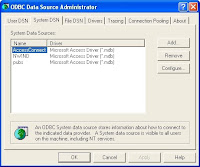
(Extension name Depends on what version of MS access you are using, in this article, we'll refer to Microsoft Access 2000)
Then choose [finish].

c. Another Dialog box will open. Fill up the Data Source name with the name you want. This will be used on Step # 2
(In this example, we will be naming this NWIND for the sample source code). Then on the Database Panel, click [Select] and browse for your database file.
Choose Driver

d. Click the OK Button and you will see that your database has been added in the System Data Sources List.
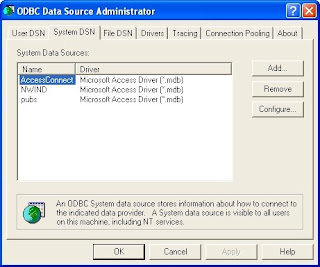
2. The Source Code

Here's a sample code I got from the book, Thinking in JAVA by Bruce Eckel. I've modified some of its parts so that it will work on our sample database, Northwind.
//: c15:jdbc:JLookup.java
// Looks up email addresses in a
// local database using JDBC.
import java.sql.*;

public class JLookup
{
public static void main(String[] args)
throws ClassNotFoundException {
try{
String dbUrl = "jdbc:odbc:NWIND";
String user = "";
String password = "";

// Load the driver (registers itself)
Class.forName(
"sun.jdbc.odbc.JdbcOdbcDriver");
Connection c = DriverManager.getConnection(
dbUrl, user, password);
Statement s = c.createStatement();
// SQL code:
ResultSet r =
s.executeQuery(
"SELECT * " +
"FROM Products");

while(r.next()) {
// Capitalization doesn't matter:
System.out.println(
r.getString("ProductID") + " " +
r.getString("ProductName"));
}
s.close(); // Also closes ResultSet
}
catch(SQLException se)
{
System.err.println(se);
}
}
}
*From Thinking in JAVA, www.bruceeckel.com


Another code that makes use on the JOptionPane. Some parts of it are simplified (if you find the Objects and Indentations a fuss on the previous example)
By Mykell Dick Soria

import javax.swing.*;
import java.sql.*;
import java.io.*;
public class ConnectionTask
{

private JTextArea txtView;
private JScrollPane jsp;

public ConnectionTask(){
txtView = new JTextArea(20,30);
txtView.setEditable(false);
jsp = new JScrollPane(txtView);

try{
Class.forName("sun.jdbc.odbc.JdbcOdbcDriver");

Connection jereme = DriverManager.getConnection("jdbc:odbc:NWIND","","");
Statement jer = jereme.createStatement();

jer.executeQuery("SELECT * FROM Customers");
ResultSet je = jer.getResultSet();

while(je.next())
{
txtView.append(je.getString(1) + "\n" + je.getString(2) + "\n" + je.getString(3) + "\n");
}
JOptionPane.showMessageDialog(null, jsp, "Database Products", JOptionPane.INFORMATION_MESSAGE);
}catch(Throwable exp){

JOptionPane.showMessageDialog(null,exp,"Error",JOptionPane.ERROR_MESSAGE);
System.err.println(exp);
}
}

public static void main(String[] args){
ConnectionTask app = new ConnectionTask();
}
}


Well, you'll know if you're doing right if your program displays the content you selected. The catch statement will display any errors about the connection


Exceptions Used In the Programs:
1. ClassNotFoundException
2 . SQLException
3. Throwable (if you've included this, you don't need to bother putting the first two)
4. IOException - though not in the example, according to Mr. Soria, it can also be substituted for SQLException.


enjoy! :D