
Showing posts with label JAVA. Show all posts
Showing posts with label JAVA. Show all posts
Tuesday, September 21, 2010

Thursday, April 8, 2010
Query Displayer JAVA Program
As a continuation for my earlier post in JDBC, here is a sample program I got from Java™ How to Program, by H.M. Deitel,

It looks like a query analyzer. You can use this to test the retrieval of data.
You can download the source at:
Query Displayer.zip
Just modify the following lines of code on DisplayQueryResults.java
For a copy of the ebook Java how to Program, visit
javaforbidden.4shared.com
The password is: itspot
(shhh... please don't tell them about this, ok?)

It looks like a query analyzer. You can use this to test the retrieval of data.
You can download the source at:
Query Displayer.zip
Just modify the following lines of code on DisplayQueryResults.java
static final String JDBC_DRIVER = "sun.jdbc.odbc.JdbcOdbcDriver";
static final String DATABASE_URL = "jdbc:odbc:NWIND";
static final String USERNAME= "";
static final String PASSWORD= "";

// default query selects all rows from authors table
static final String DEFAULT_QUERY = "SELECT * FROM Products";
For a copy of the ebook Java how to Program, visit
javaforbidden.4shared.com
The password is: itspot
(shhh... please don't tell them about this, ok?)
Saturday, April 3, 2010
JAVA to MySQL Connection(ODBC)
Here we are going to discuss how to connect JAVA to MySQL
For portability and general purposes, we will be using the Open Database Connectivity(ODBC). Connecting to MySQL with the use of Open Database is similar to connecting to MS Access only with some additional steps.
Here's a copy of the database(dump file) I used in this tutorial. Just import it into your mysql. Download
1. Download MySQL ODBC Connector. I have a copy for windows users at www.mysqlodbccon.4shared.com . Please refer to the link below for more info.(Don't bother the filename if it says noinstall, you're still going to be installing it anyway)
2. Extract the Zip File and Run Install.bat (see, like I told you... although the batch (.bat) file copies the library(.dll) files into your operating system unlike real installers where they involve file extraction)

3. A message will prompt that the instalation (copying of libraries) was successful.
1. We will now create a Data Source Name(DNS) which will be used as a reference by the program. First go to your control panel then Administrative Tools > Data Sources(ODBC)

2. The ODBC Data Source Dialog will then appear, select the System DSN tab.

3. Click on the Add button then another Dialog Box containing the Drivers will appear. Select MySQL ODBC Driver then click Finish.

4. Another Dialog Box will appear for the final configuration. Just fill up the neccessary inputs, the Data Source Name that you will be using on the text box. The Server should contain the local server name(you can use localhost or your computer name). Enter the user and password fields, and the database that you will be using as source.

5. When your done, click finish and you will notice that the data source has been added on the list of System Data Sources.
We will now explain the coding for connecting to the database
1. First import the neccessary libraries for Database connection, java.sql:
import java.sql.*;
2. Then instantiate your connection variables
3. On your procedural method, create an exception handler
4.In the try block, insert your connection code, First is the forced loading of the Database Driver in Class.forName() followed by the declaration of objects we instantiated earlier.
For a full source code listing:
For more information about MySQL ODBC 5.1 Driver, including
installation instructions, please visit;
http://www.mysql.com/products/myodbc/index.html


For portability and general purposes, we will be using the Open Database Connectivity(ODBC). Connecting to MySQL with the use of Open Database is similar to connecting to MS Access only with some additional steps.
Here's a copy of the database(dump file) I used in this tutorial. Just import it into your mysql. Download
Installing the Driver
1. Download MySQL ODBC Connector. I have a copy for windows users at www.mysqlodbccon.4shared.com . Please refer to the link below for more info.(Don't bother the filename if it says noinstall, you're still going to be installing it anyway)
2. Extract the Zip File and Run Install.bat (see, like I told you... although the batch (.bat) file copies the library(.dll) files into your operating system unlike real installers where they involve file extraction)

3. A message will prompt that the instalation (copying of libraries) was successful.
Setting up the Data Source
1. We will now create a Data Source Name(DNS) which will be used as a reference by the program. First go to your control panel then Administrative Tools > Data Sources(ODBC)

2. The ODBC Data Source Dialog will then appear, select the System DSN tab.

3. Click on the Add button then another Dialog Box containing the Drivers will appear. Select MySQL ODBC Driver then click Finish.

4. Another Dialog Box will appear for the final configuration. Just fill up the neccessary inputs, the Data Source Name that you will be using on the text box. The Server should contain the local server name(you can use localhost or your computer name). Enter the user and password fields, and the database that you will be using as source.

5. When your done, click finish and you will notice that the data source has been added on the list of System Data Sources.
Coding
We will now explain the coding for connecting to the database
1. First import the neccessary libraries for Database connection, java.sql:
import java.sql.*;
2. Then instantiate your connection variables
Connection con;
Statement stmt;
ResultSet rs;
3. On your procedural method, create an exception handler
try{

//Your Code Goes Here
}catch(Exception e){
System.err.println(e);
}
4.In the try block, insert your connection code, First is the forced loading of the Database Driver in Class.forName() followed by the declaration of objects we instantiated earlier.
//Load the JdbcOdbc Driver
Class.forName("sun.jdbc.odbc.JdbcOdbcDriver");

//Specify the Database URL where the DNS will be and the user and password
con = DriverManager.getConnection("jdbc:odbc:TOY2","root","root");

//Initialize the statement to be used, specify if rows are scrollable
stmt = con.createStatement(ResultSet.TYPE_SCROLL_SENSITIVE,ResultSet.CONCUR_READ_ONLY);
//ResultSet will hold the data retrieved
rs = stmt.executeQuery("SELECT * FROM Humans");

//Display the results
while(rs.next()){
System.out.println(rs.getInt("ID") + " " + rs.getString("LastName") + " " + rs.getString("FirstName"));
}
For a full source code listing:
import java.sql.*;

public class ViewingMySQL {

public static void main(String[] args) {
Connection con;
Statement stmt;
ResultSet rs;
try{
Class.forName("sun.jdbc.odbc.JdbcOdbcDriver");
con = DriverManager.getConnection("jdbc:odbc:TOY2","root","root");

stmt = con.createStatement(ResultSet.TYPE_SCROLL_SENSITIVE,ResultSet.CONCUR_READ_ONLY);
rs = stmt.executeQuery("SELECT * FROM Humans");


while(rs.next()){
System.out.println(rs.getInt("ID") + " " + rs.getString("LastName") + " " + rs.getString("FirstName"));
}
}catch(Exception e){
System.err.println(e);
}
}
}
For more information about MySQL ODBC 5.1 Driver, including
installation instructions, please visit;
http://www.mysql.com/products/myodbc/index.html
Tuesday, November 17, 2009
Using Continue
In Programming languages such as C/C++, JAVA, PHP, Python.. etc the keyword continue is a jump statement like break and goto.
This is used to skip inside an iteration.
An example for this is the following for loop statement that prints all even numbers from 0 - 10.
The code is written in C Language (actually it is more like an algotithm)
so even JAVA programmers can easily translate them.
Another example, for more sophisticated programming, continue may be also used for deleting entries in file manipulation.
This is used to skip inside an iteration.
An example for this is the following for loop statement that prints all even numbers from 0 - 10.
for(int num = 0;num <= 10; num++){
if ((num % 2) > 0)
continue;
printf("%d ", num);
}
The code is written in C Language (actually it is more like an algotithm)
so even JAVA programmers can easily translate them.
Another example, for more sophisticated programming, continue may be also used for deleting entries in file manipulation.
Friday, November 13, 2009
Downloadable JAVA EBOOKS
Free JAVA Lectures (Slideshow).exe Free Java Lectures
How to Program in JAVA.rar JAVA How to Program - the password in this ebook is itspot.
This is a fully featured book where you can learn Java. The best book I know in that programming language.

Thinking in JAVA
I have a copy of this book and I find it easy to understand because of the detailed explanation.
The JAVA turoial A short course on the basics.chm This book helped me a lot on projects in school
squidoo.com/itebooks
How to Program in JAVA.rar JAVA How to Program - the password in this ebook is itspot.
This is a fully featured book where you can learn Java. The best book I know in that programming language.
Thinking in JAVA
I have a copy of this book and I find it easy to understand because of the detailed explanation.
The JAVA turoial A short course on the basics.chm This book helped me a lot on projects in school
squidoo.com/itebooks
Monday, October 5, 2009
JAVA to Microsoft Access Connection
(Using the JDBC-ODBC bridge)
A video tutorial is also available Click here to watch
ODBC can be used to connect on any databases though processing is slow... but it would still be very helpful, and that's what were gonna use to connect a JAVA Program to an MS Access Database.
We'll be using Northwind Database, a sample database made by Microsoft Corporation for learning purposes. A database of this is also available in SQL server 2000. Click on the link to download the mdb File:
1. Configure the ODBC Settings
a. Go to Control Pane, then Choose Administrative Tools >> Datasources(ODBC)

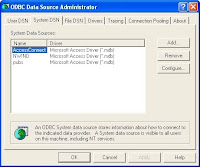
b. In the ODBC Dialog box, choose the System DSN tab, then click the [Add] button.
c. A Dialog box appears, choose Microsoft Access Driver (*.mdb)
(Extension name Depends on what version of MS access you are using, in this article, we'll refer to Microsoft Access 2000)
Then choose [finish].
c. Another Dialog box will open. Fill up the Data Source name with the name you want. This will be used on Step # 2
(In this example, we will be naming this NWIND for the sample source code). Then on the Database Panel, click [Select] and browse for your database file.

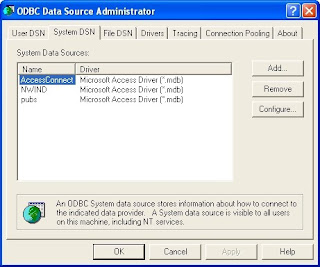
d. Click the OK Button and you will see that your database has been added in the System Data Sources List.
2. The Source Code
Here's a sample code I got from the book, Thinking in JAVA by Bruce Eckel. I've modified some of its parts so that it will work on our sample database, Northwind.
Another code that makes use on the JOptionPane. Some parts of it are simplified (if you find the Objects and Indentations a fuss on the previous example)
By Mykell Dick Soria
Well, you'll know if you're doing right if your program displays the content you selected. The catch statement will display any errors about the connection
Exceptions Used In the Programs:
1. ClassNotFoundException
2 . SQLException
3. Throwable (if you've included this, you don't need to bother putting the first two)
4. IOException - though not in the example, according to Mr. Soria, it can also be substituted for SQLException.
enjoy! :D
A video tutorial is also available Click here to watch
ODBC can be used to connect on any databases though processing is slow... but it would still be very helpful, and that's what were gonna use to connect a JAVA Program to an MS Access Database.
We'll be using Northwind Database, a sample database made by Microsoft Corporation for learning purposes. A database of this is also available in SQL server 2000. Click on the link to download the mdb File:
1. Configure the ODBC Settings
a. Go to Control Pane, then Choose Administrative Tools >> Datasources(ODBC)

b. In the ODBC Dialog box, choose the System DSN tab, then click the [Add] button.
c. A Dialog box appears, choose Microsoft Access Driver (*.mdb)

(Extension name Depends on what version of MS access you are using, in this article, we'll refer to Microsoft Access 2000)
Then choose [finish].
c. Another Dialog box will open. Fill up the Data Source name with the name you want. This will be used on Step # 2
(In this example, we will be naming this NWIND for the sample source code). Then on the Database Panel, click [Select] and browse for your database file.
d. Click the OK Button and you will see that your database has been added in the System Data Sources List.

2. The Source Code
Here's a sample code I got from the book, Thinking in JAVA by Bruce Eckel. I've modified some of its parts so that it will work on our sample database, Northwind.
//: c15:jdbc:JLookup.java
// Looks up email addresses in a
// local database using JDBC.
import java.sql.*;

public class JLookup
{
public static void main(String[] args)
throws ClassNotFoundException {
try{
String dbUrl = "jdbc:odbc:NWIND";
String user = "";
String password = "";

// Load the driver (registers itself)
Class.forName(
"sun.jdbc.odbc.JdbcOdbcDriver");
Connection c = DriverManager.getConnection(
dbUrl, user, password);
Statement s = c.createStatement();
// SQL code:
ResultSet r =
s.executeQuery(
"SELECT * " +
"FROM Products");

while(r.next()) {
// Capitalization doesn't matter:
System.out.println(
r.getString("ProductID") + " " +
r.getString("ProductName"));
}
s.close(); // Also closes ResultSet
}
catch(SQLException se)
{
System.err.println(se);
}
}
}
*From Thinking in JAVA, www.bruceeckel.comAnother code that makes use on the JOptionPane. Some parts of it are simplified (if you find the Objects and Indentations a fuss on the previous example)
By Mykell Dick Soria
import javax.swing.*;
import java.sql.*;
import java.io.*;
public class ConnectionTask
{

private JTextArea txtView;
private JScrollPane jsp;

public ConnectionTask(){
txtView = new JTextArea(20,30);
txtView.setEditable(false);
jsp = new JScrollPane(txtView);

try{
Class.forName("sun.jdbc.odbc.JdbcOdbcDriver");

Connection jereme = DriverManager.getConnection("jdbc:odbc:NWIND","","");
Statement jer = jereme.createStatement();

jer.executeQuery("SELECT * FROM Customers");
ResultSet je = jer.getResultSet();

while(je.next())
{
txtView.append(je.getString(1) + "\n" + je.getString(2) + "\n" + je.getString(3) + "\n");
}
JOptionPane.showMessageDialog(null, jsp, "Database Products", JOptionPane.INFORMATION_MESSAGE);
}catch(Throwable exp){

JOptionPane.showMessageDialog(null,exp,"Error",JOptionPane.ERROR_MESSAGE);
System.err.println(exp);
}
}

public static void main(String[] args){
ConnectionTask app = new ConnectionTask();
}
}
Well, you'll know if you're doing right if your program displays the content you selected. The catch statement will display any errors about the connection
Exceptions Used In the Programs:
1. ClassNotFoundException
2 . SQLException
3. Throwable (if you've included this, you don't need to bother putting the first two)
4. IOException - though not in the example, according to Mr. Soria, it can also be substituted for SQLException.
enjoy! :D
Subscribe to:
Posts (Atom)